.png)
Dive 3.17.0: Simulation Videos in Minutes, Not Hours
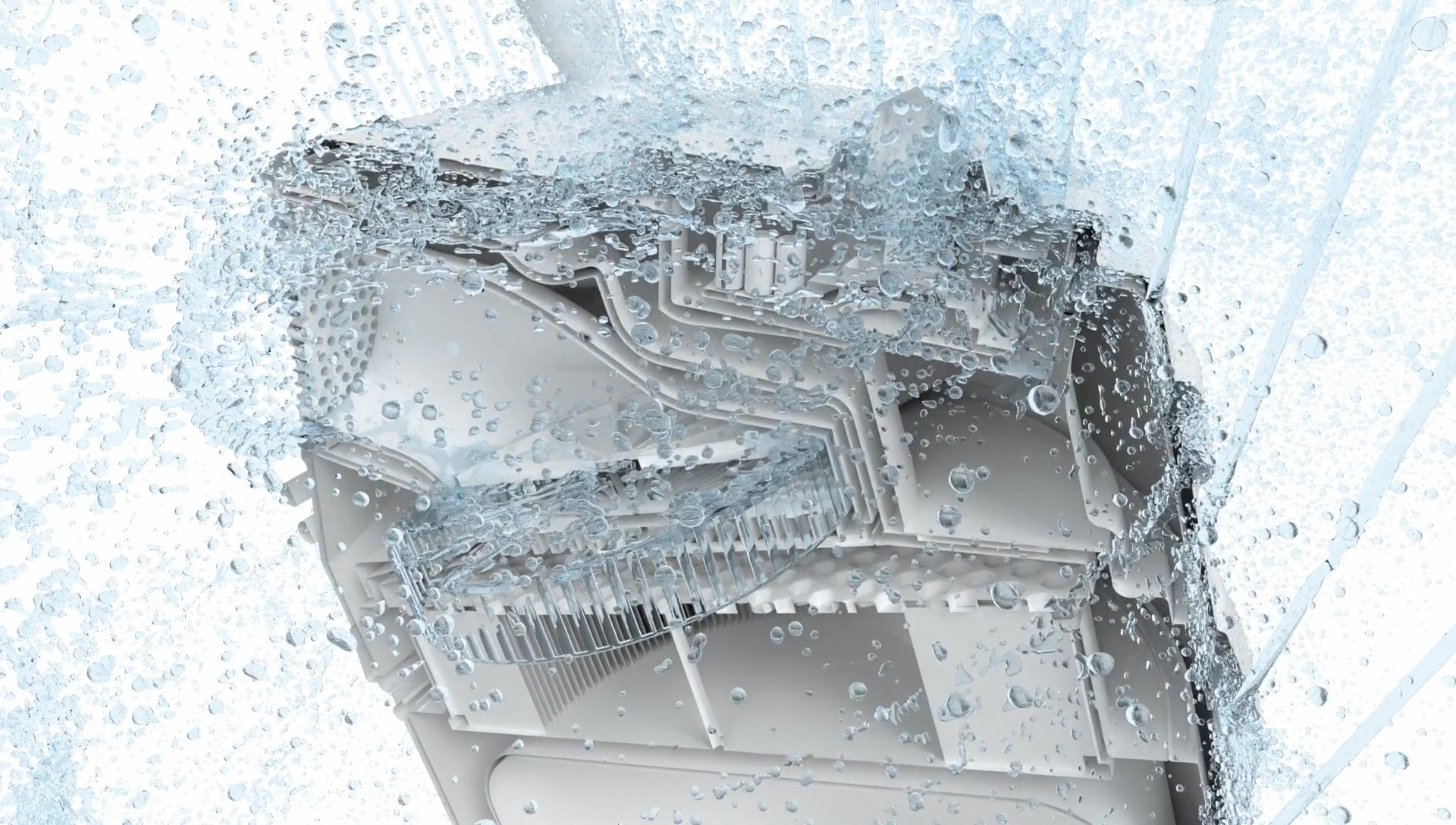
A simulation can reveal exactly what is happening inside a design. But turning those results into a video that colleagues, customers, and decision-makers can easily understand has traditionally required extra tools, additional setup, and more troublesome, considerably high rendering time.
With Video Generation in Dive 3.17.0, you can now create clear, presentation-ready videos directly from your simulation results in minutes, not hours.
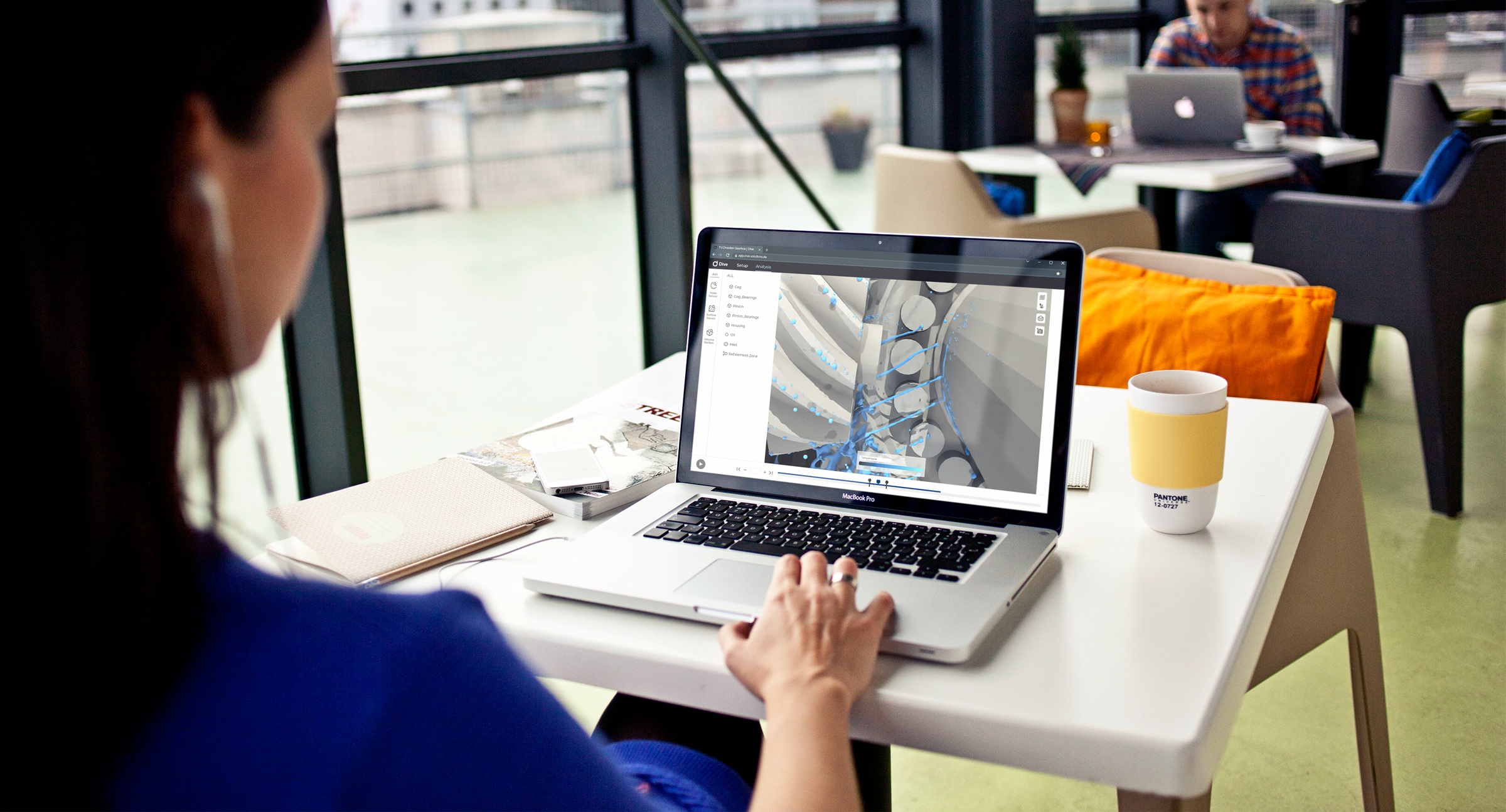
Set up your visualization, choose your camera position, preview the result, and submit the video job. Dive renders the individual frames in the cloud in parallel, so you can move from results to a polished visual faster, without leaving the platform.
See Your Simulation Results in a New Way
Video Generation is built to help engineers do two things better:
- Visually analyse how fluids move through or around a design
- Communicate simulation results clearly to managers, customers, and other stakeholders
Instead of recording the visualization in your browser or configuring a separate ParaView workflow, you can prepare and generate your video inside Dive.
This release supports rendered fluid surfaces and solids, with carefully selected materials and visualization settings that make it easier to produce a polished result without becoming a rendering specialist.
A Simpler Workflow, Directly in Dive
Creating a video takes only a few steps:
- Configure model visualization in the new Render Settings.
- Position model orientation to the desired 3D view.
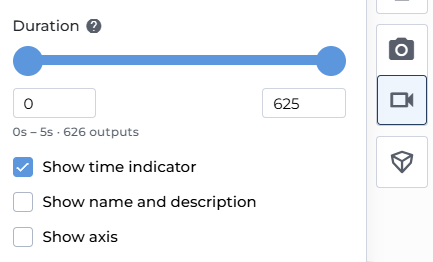
- Select the output range and video annotations.
- Generate a rendering preview (low or high quality) to check the scene.
- Click Create to start video rendering.
Dive then submits the rendering job to its cloud infrastructure. Once completed, the video can be viewed, downloaded, and shared.
Rendering a video typically takes no longer than 30 minutes, and usually much less.
Available Configurations
Rendering videos in Dive is simple and requires no expert rendering knowledge. With curated settings, you can change the visuals to better highlight simulation results.
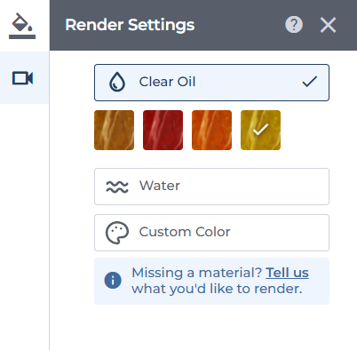
Fluids can be setup as clear oil in four tones, water or any custom color.
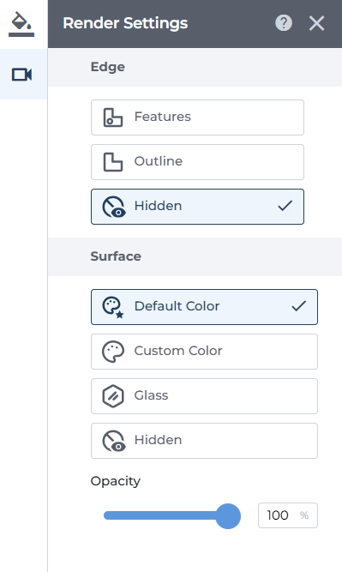
For solid parts, you can configure edge and surface visualization independently. Options include hidden, features or outline edges, and surface colors options vary from glass to custom color, with completely adjustable opacity.
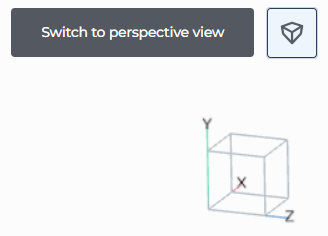
The 3D camera position is simply configured based on the current camera view. You can also use perspective or orthogonal camera modes and clip solids to look inside a housing while keeping the fluid surface intact.
How It Works: From Sequential Rendering to Cloud-Native Speed
Traditional rendering workflows generally process one frame after another on a workstation. Dive distributes frames across multiple cloud nodes so they can be rendered in parallel.
This is the foundation for the speed improvement: instead of waiting for a single machine to work through every frame sequentially, many frames can be processed at the same time.
This means that you can generate videos up to 20x faster* than traditional rendering workflows.
*Actual rendering time can vary depending on the simulation, number of outputs, selected settings, and current system load.
Automate Your Workflow for Multiple Simulations
Video Generation can also be automated through the Fisherman Python SDK.
This makes it possible to create multiple videos from different simulations at once. For example, an engineering team running a design study could generate consistently configure videos for multiple variants without manually rebuilding each visualization in a separate tool.
We have the Fisherman code available for you on Dive’s knowledge base.
Dive 3.17.0: Additional Platform Improvements - Mesh decimation (Per-Part)
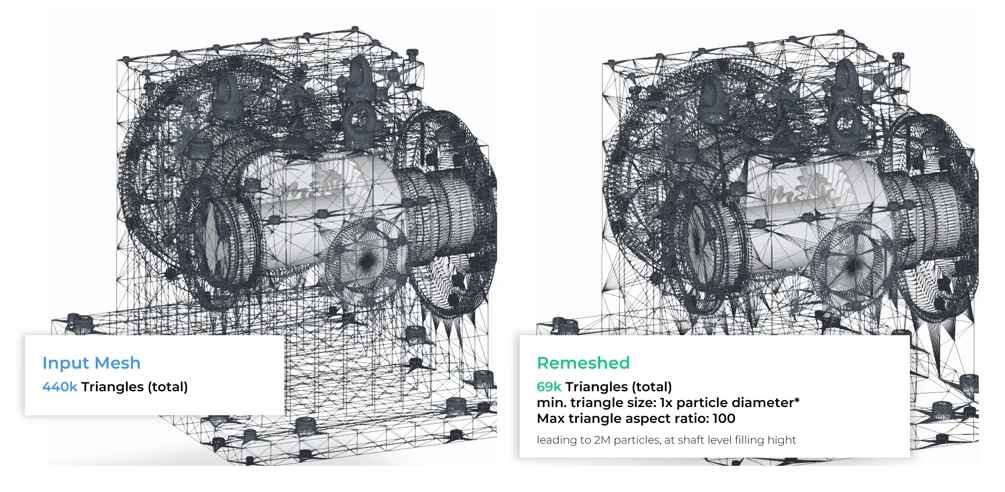
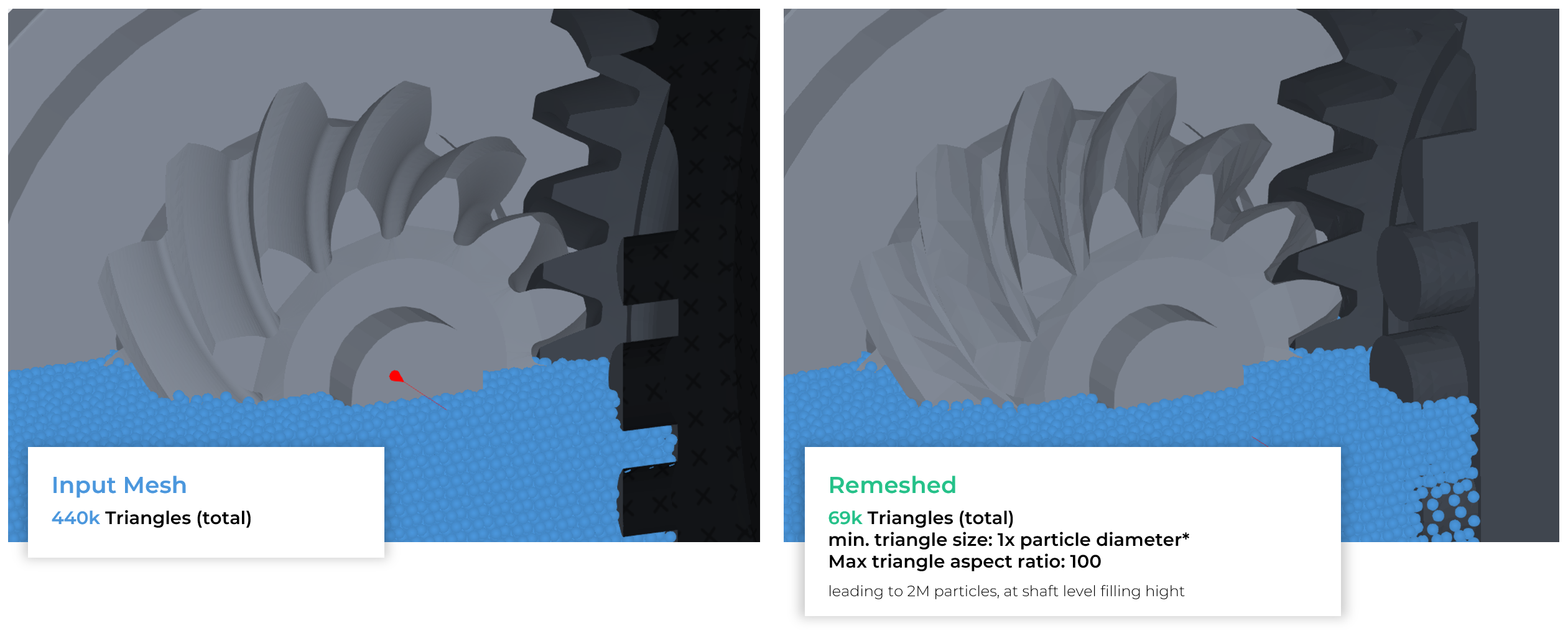
While Video Generation is the highlight of this release, we've also introduced Mesh decimation (Per-Part).
This marks the start of a series of releases with one clear goal: removing manual geometry handling and cleaning from most of our customers' workflows, so you spend less time preparing meshes and more time on results.
You can now reduce triangle count on a per-part basis while preserving geometric fidelity:
- Keep input: leave the mesh unchanged.
- Decimate: target a size relative to the particle size, or set absolute values. Absolute is useful when the mesh should not change, for example during a particle resolution study.
A maximum triangle aspect ratio is also available to control mesh quality. Decimation runs on discretization.
Ready To See Your Simulations in Motion?
If you are a Dive customer, simply open a simulation result in Dive and follow the tutorial to create your first video.
Video generation is available to Production, Excellence and Global Group licenses free of charge until October 31, 2026. All other plans have access to Rendering Previews only.
New To Dive?
Talk to a simulation specialist and see how cloud-native simulation and video generation can help your team communicate results faster.